MFA still matters — don't turn it off. This isn't a reason to abandon multi-factor authentication. It stops the vast majority of account takeovers. But it's no longer the finish line, and your business needs to know what comes next.
For years the advice was simple: turn on MFA and you're protected. That was mostly true. But a new class of phishing attack has changed the math — and if your business uses Microsoft 365, you need to know about this.
Security researchers at Huntress just published a detailed breakdown of three phishing kits actively targeting Microsoft 365 accounts right now: EvilTokens, Knight Office, and Kali365. They have one thing in common — they're not trying to steal your password. They're stealing your session token.
What's a Session Token and Why Does It Matter?
A password gets you to the front door. A session token is what Microsoft uses after you've already logged in and completed your MFA challenge. It says, essentially: "I already verified this person — let them in." Once an attacker has that token, they can replay it into an active authenticated session. No password needed. No MFA prompt to defeat. They're already inside.
This is called an Adversary-in-the-Middle (AitM) attack. Huntress has documented it in real campaigns hitting businesses right now.
How the Attack Works
- You get a phishing email — a DocuSign request, a Teams notification, an invoice that looks normal. You click the link. The page looks exactly like Microsoft's login.
- You log in and complete your MFA. Everything feels normal. No red flags. It even works.
- Behind the scenes, a proxy relayed your login to the real Microsoft in real time — capturing your session token as it was issued. You're in your account. The attacker is in your account. Simultaneously.
The Kali365 kit goes further still. It uses "device code phishing" — an authentication flow designed for devices without keyboards, like smart TVs. A victim is tricked into entering a small code, which hands the attacker a full OAuth token for the entire Microsoft tenant. There's no fake login page. Nothing to spot.
Huntress found all three kits come with admin dashboards, real-time credential feeds, and round-the-clock support — built like a SaaS product for criminals.
What This Means for Your Business
Microsoft Entra (formerly Azure AD) has tools specifically designed to catch this kind of attack — Conditional Access policies, sign-in risk detection, and sign-in log review — but most small business tenants don't have them configured. If you're not sure where your environment stands, that's worth a conversation with whoever manages your Microsoft 365 account. Some of the stronger protections (like Entra ID Protection) require Business Premium or an Entra P2 license.
The more important picture is below.
What Microsoft Is Actually Doing About This
If you've noticed Microsoft prompting your users to set up a PIN, download the Authenticator app, register a passkey, or switch away from text message codes — this is exactly why. These aren't random annoyances. They're part of a deliberate, multi-year shift toward authentication methods that cannot be intercepted and replayed.
🔵 Microsoft's Direction in Plain English
Passkeys and the Microsoft Authenticator app are where Microsoft is headed. The Authenticator app now supports passkeys — cryptographic credentials tied to your specific device. Unlike a text code or an Authenticator push notification, a passkey cannot be relayed by an attacker proxy, because it's mathematically bound to your phone or PC. It only works on the real Microsoft site, not a lookalike.
SMS text codes are on the way out. Microsoft has been signaling for some time that SMS and voice call verification are the weakest forms of MFA — vulnerable to SIM swapping, interception, and the kind of token theft described above. They haven't set a hard cutoff date for business accounts, but the direction is clear: they're steering everyone toward the Authenticator app and passkeys.
Mandatory MFA is already here for admins. Microsoft has rolled out mandatory MFA requirements for access to the Azure portal, Microsoft Entra admin center, and Intune. If you manage a Microsoft 365 tenant, you've likely already hit this. It's expanding.
Number matching — the feature that makes you type a number shown on your screen into the Authenticator app, instead of just tapping "Approve" — has been enforced since 2023. It was specifically designed to stop MFA fatigue attacks, where attackers spam approval requests hoping a user taps "Approve" to make it stop.
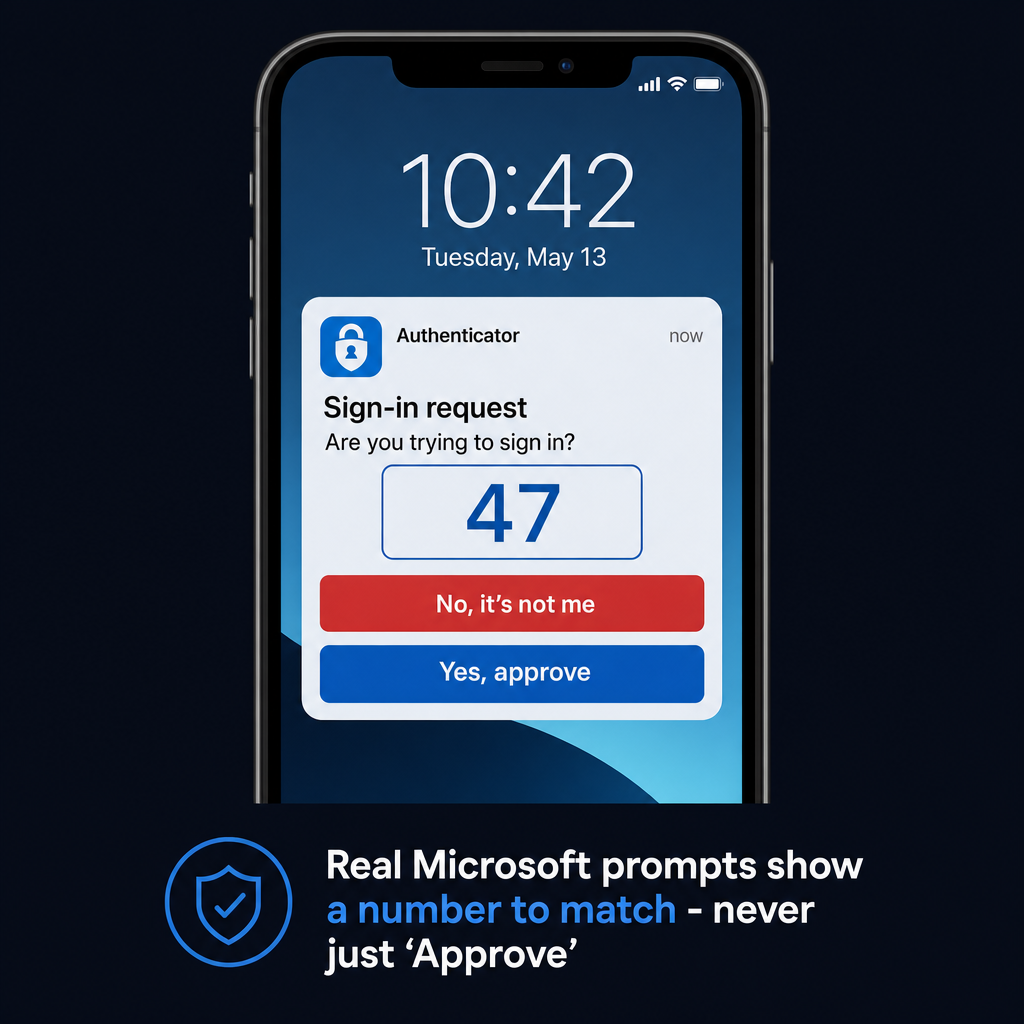
The number-matching prompt: you must type the number shown on your screen into the app. Tapping "Approve" blind is no longer possible.
The pattern is consistent: Microsoft is raising the floor. Each change that annoys your users is a specific response to a specific attack that was working. The token theft attacks described in this article are the reason passkeys are being pushed hard right now. Let it happen. Encourage it. Users who grumble about setting up the Authenticator app are users whose accounts are significantly harder to compromise.
How to Spot a Legitimate Prompt — and a Fake One
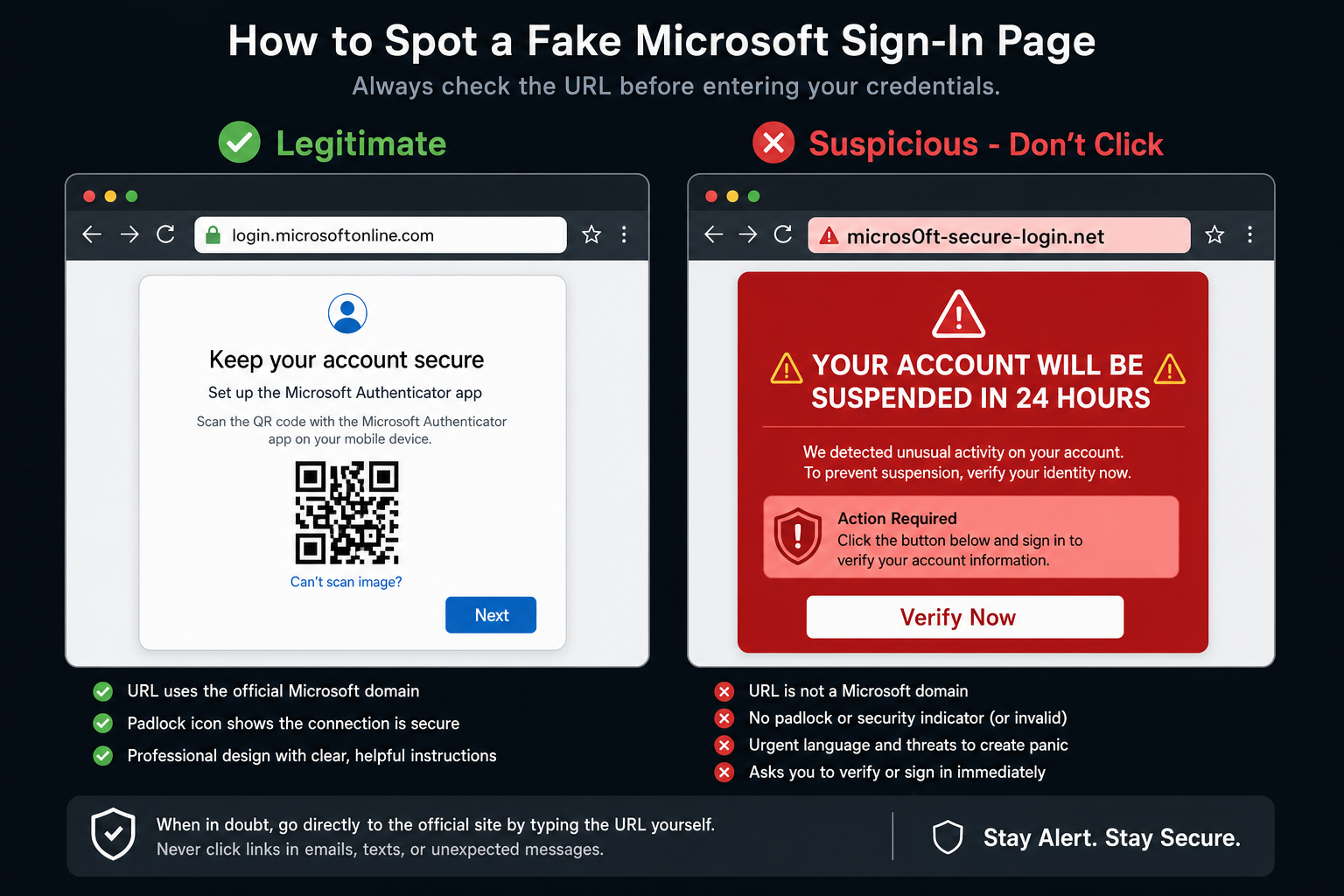
Illustration: legitimate Microsoft prompt (left) vs. a typical phishing attempt (right). Note the URL and tone.
As Microsoft rolls these changes out, scammers are going to follow. Expect fake emails, fake pop-ups, and fake phone calls claiming you need to "verify your account" or "set up the new Microsoft login system immediately." Here's how to tell the difference.
✅ Legitimate Microsoft prompts look like this
They appear inside your browser or app when you're already signing in. When Microsoft wants you to set up the Authenticator app or a passkey, the prompt appears at login.microsoft.com or account.microsoft.com — the same place you always sign in. It does not come from a link in an email.
The URL is Microsoft's. Look at the address bar. Legitimate prompts come from domains ending in microsoft.com or live.com. Nothing else.
It doesn't ask for your existing password to "verify." The setup flow asks you to scan a QR code, approve a notification on your phone, or create a PIN. It does not ask you to re-enter your password as part of setup.
No urgency, no threats. Microsoft's legitimate prompts say things like "Add a verification method" or "Your organization requires you to set this up." They don't say "Your account will be suspended in 24 hours" or "Act now."
See what the real setup screens look like: Microsoft Authenticator setup — official guide ↗
If you get an email, text, or phone call telling you to set up a new login method — stop. Call your IT team or Help Wizards before clicking anything. Legitimate Microsoft changes appear when you sign in, not in your inbox.
It's Not Just Microsoft 365
The same shift is happening everywhere. Google, Apple, LinkedIn, Dropbox, and most major platforms have added passkey support. The FIDO2 standard behind passkeys is an industry-wide effort to replace passwords and weak MFA with something that's immune to phishing by design.
When users encounter a "set up a passkey" prompt on any service — not just Microsoft — the right answer is to do it. These prompts will become more common across every platform your team uses over the next few years. Building the habit now makes the transition easier.
Two Deadlines This Week
⏰ Chrome & Edge — CISA Deadline November 24
CVE-2026-125350 is a use-after-free flaw in Chromium's XML component that can let an attacker execute code inside the browser. Chrome and Edge should update automatically — verify in your browser settings or push the update if you manage devices centrally.
⏰ SonicWall — CISA Deadline November 20 (This Thursday)
If you have a SonicWall firewall and haven't applied the patches for CVE-2026-19868, there are two days left. We covered this earlier this month: SonicWall CVE-2026-19868 Patches.
Not sure where your Microsoft 365 environment stands?
We check Conditional Access configurations, sign-in logs, and authentication method policies as part of security reviews for Columbus businesses. Give us a call at (614) 291-4357 or reach out at helpwizards.com/contact.
Illustrations are for educational reference and do not represent official Microsoft materials. Microsoft, Microsoft 365, and Microsoft Authenticator are trademarks of Microsoft Corporation.
← Back to Tech News